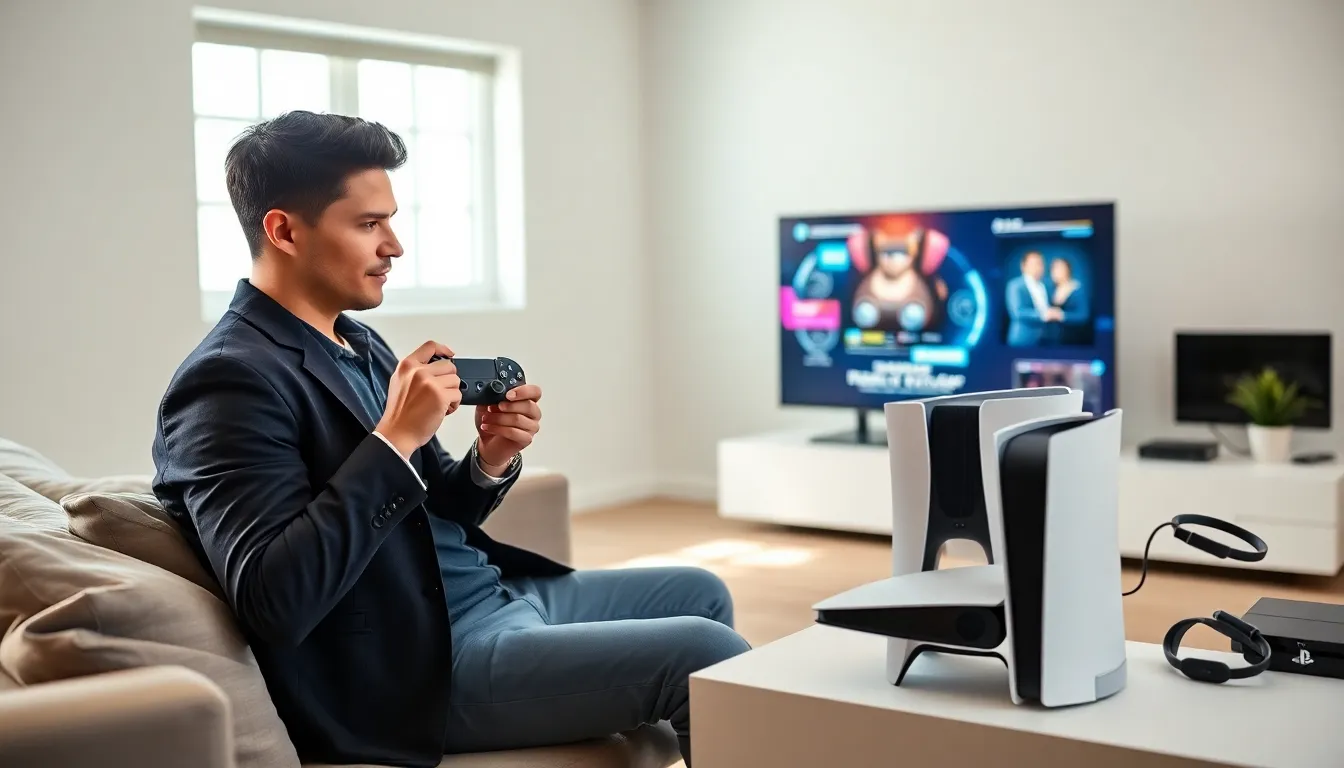
PlayStation tips can transform how players interact with their console. Many gamers use their PlayStation without realizing the full range of features available to them. From hidden shortcuts to storage tricks, small adjustments make a big difference in performance and enjoyment.
This guide covers practical PlayStation tips that work across PS4 and PS5 systems. Players will learn how to optimize settings, manage downloads, extend controller battery life, and improve online play. These strategies help gamers get more from their console without spending extra money or time.
Table of Contents
ToggleKey Takeaways
- These PlayStation tips help you optimize video output, enable Performance Mode, and disable notifications for a smoother gaming experience.
- Use Rest Mode to download updates overnight and charge controllers without running the full console.
- Expand storage by using external drives and regularly deleting unused game data to free up space.
- Switch to a wired ethernet connection and adjust DNS settings to reduce lag during online play.
- Extend controller battery life by dimming the light bar, lowering speaker volume, and disabling vibration when not needed.
- Take advantage of hidden features like Quick Menu access, voice commands, and Remote Play to get more from your PlayStation.
Optimize Your Console Settings for Better Performance
The default PlayStation settings work fine for most users. But tweaking a few options can noticeably improve picture quality and system speed.
Adjust Video Output Settings
Players should match their video output to their TV’s capabilities. On PS5, go to Settings > Screen and Video > Video Output. Select the highest resolution the TV supports, 4K at 120Hz for compatible displays. Enable HDR if the TV supports it. These PlayStation tips ensure the console delivers its best visual performance.
Enable Performance Mode
Many games offer a choice between resolution and performance modes. Performance mode prioritizes smooth frame rates over visual fidelity. Players who prefer responsive gameplay should enable this option in Settings > Saved Data and Game/App Settings > Game Presets.
Turn Off Notifications During Gameplay
Notifications can interrupt intense gaming moments. Go to Settings > Notifications and customize which alerts appear. Disable friend requests and message notifications during gameplay. This simple PlayStation tip removes distractions.
Use Rest Mode Wisely
Rest Mode keeps the console in a low-power state while downloading updates and charging controllers. Enable it in Settings > System > Power Saving. The console uses less electricity than full operation but stays ready for quick startup.
Master Hidden Features and Shortcuts
PlayStation consoles include features that many players overlook. These shortcuts save time and add convenience.
Quick Menu Access
Press and hold the PS button to open the Quick Menu. This overlay provides fast access to sound settings, controller options, and active downloads without leaving a game. It’s one of the most useful PlayStation tips for frequent adjusters.
Screenshot and Video Capture
The Create button (PS5) or Share button (PS4) captures screenshots and video clips instantly. Double-tap it to start recording. Hold it to take a screenshot. Players can adjust capture settings to save clips in different lengths and formats.
Voice Commands
PS5 owners can use voice commands to search for games and apps. Say “Hey PlayStation” followed by a command like “Open Spotify” or “Search for racing games.” Enable this feature in Settings > Voice Command.
Remote Play on Other Devices
The PlayStation Remote Play app streams games to phones, tablets, and computers. Players can continue gaming away from the TV. This PlayStation tip works great for households sharing one television. Download the app and pair it with the console through Settings > System > Remote Play.
Customize Home Screen
Reorganize the home screen by pressing Options on any game icon. Players can hide games they rarely play or create folders to group similar titles together.
Manage Storage and Downloads Efficiently
Modern games consume enormous amounts of storage space. Smart management prevents the frustration of full hard drives.
Check Storage Usage Regularly
Go to Settings > Storage to see what’s taking up space. Games, apps, saved data, and media all compete for room. Delete games that haven’t been played in months. Many players forget about titles they finished long ago.
Use an External Hard Drive
PS4 games can run directly from external USB drives. PS5 games require the internal SSD or an M.2 expansion drive, but players can store them on external drives and transfer them when needed. This PlayStation tip effectively doubles available space.
Download During Off-Hours
Large downloads can slow internet speeds for other devices. Schedule downloads for overnight hours using Rest Mode. The console will download updates and games while the household sleeps.
Delete Unused Game Data
Some games install optional content like additional language packs or high-resolution textures. Check individual game settings to remove unnecessary files. This PlayStation tip can free up several gigabytes per game.
Prioritize Downloads
When multiple downloads queue up, press Options on the most important one and select “Move to Top of List.” The console will finish that download first.
Improve Your Online Gaming Experience
Online play depends heavily on network quality. These PlayStation tips reduce lag and connection problems.
Use a Wired Connection
Wi-Fi works for casual use, but competitive players benefit from ethernet cables. Wired connections provide lower latency and more stable speeds. The difference becomes obvious in fast-paced multiplayer games.
Test Connection Speed
Go to Settings > Network > Test Internet Connection to check download and upload speeds. If results seem low, restart the router or move the console closer to it. PlayStation recommends at least 5 Mbps download speed for online play.
Change DNS Settings
Switching to public DNS servers like Google (8.8.8.8) or Cloudflare (1.1.1.1) can improve connection stability. Go to Settings > Network > Set Up Internet Connection and choose Custom to enter DNS addresses manually.
Enable Game Chat Audio
For multiplayer communication, adjust audio settings in the Quick Menu. Balance game audio and voice chat levels so teammates come through clearly. Use a headset with a good microphone for the best results.
Check PlayStation Network Status
Before troubleshooting connection issues, verify that PlayStation Network is online. Sony’s status page shows current server conditions. Sometimes the problem isn’t on the player’s end.
Extend Controller Battery Life and Functionality
DualSense and DualShock controllers offer impressive features, but battery life suffers during extended sessions. These PlayStation tips help controllers last longer.
Lower Controller Speaker Volume
The DualSense speaker drains battery quickly. Reduce its volume or disable it entirely in Settings > Accessories > Controllers. Game audio through the speaker sounds cool but costs power.
Dim the Light Bar
The controller’s light bar looks nice but uses energy. Set it to dim in the controller settings. This change alone can add an hour or more to battery life, a practical PlayStation tip for marathon gaming sessions.
Disable Vibration for Some Games
Haptic feedback and adaptive triggers make the DualSense special, but they consume battery. For less immersive games, consider reducing haptic intensity. The setting appears in both system options and individual game menus.
Charge Controllers in Rest Mode
Connect controllers via USB before putting the console in Rest Mode. Ensure Settings > System > Power Saving > Features Available in Rest Mode has “Supply Power to USB Ports” enabled. Controllers charge without running the full console.
Keep a Backup Controller
Serious gamers benefit from owning two controllers. One charges while the other stays in use. No interruptions, no waiting. This PlayStation tip seems obvious but solves the dead battery problem completely.
Update Controller Firmware
Sony releases firmware updates for controllers that fix bugs and improve performance. Connect the controller via USB and check for updates in Settings > Accessories > Controllers.